
Shared Review Rules
Most teams have standards that apply across many repositories: how to log, how to handle errors, how to write migrations, how React components should be structured. Copying those files into every repository means they drift apart the moment someone edits one copy.
Shared Review Rules keeps them in one place. You point Optibot at a single repository of markdown rule files. Optibot works out which rules fit each repository in your organization, and applies them on every pull request and merge request review. Edit a rule once, and every repository that uses it picks up the change.
Before You Start
- Owners set it up. Only organization owners can choose the shared rules repository and change the mapping. Other members can see which rules apply to each repository.
- An active or trial subscription is required.
- The rules repository must belong to the same organization and be one Optibot can read, the same as any repository Optibot reviews. When you save, Optibot checks it can read the repository and tells you if it can’t.
- Works with GitHub and GitLab.
Setting It Up
1. Create a rules repository
Put your rules in a repository of their own, one topic per markdown file (.md or .mdx). A layout like this works well:
engineering-standards/
├── README.md                       ← describes the repo, never treated as a rule
└── rules/
    ├── code-style.md
    ├── naming-conventions.md
    ├── logging-and-secrets.md
    ├── testing.md
    ├── typescript.md
    ├── react-conventions.md
    ├── database-and-migrations.md
    └── terraform.md
Write each file the way you would brief a teammate doing the review. Start it with a # heading, since Optibot shows the first heading as the rule’s title.
# Database and Migrations

- Every schema change ships with a migration. Never edit a migration that has already run.
- Migrations must be reversible. Flag a `down` step that is empty or throws.
- Flag queries built by concatenating user input into SQL.
- New columns on large tables need a default or must be nullable.
2. Choose the repository
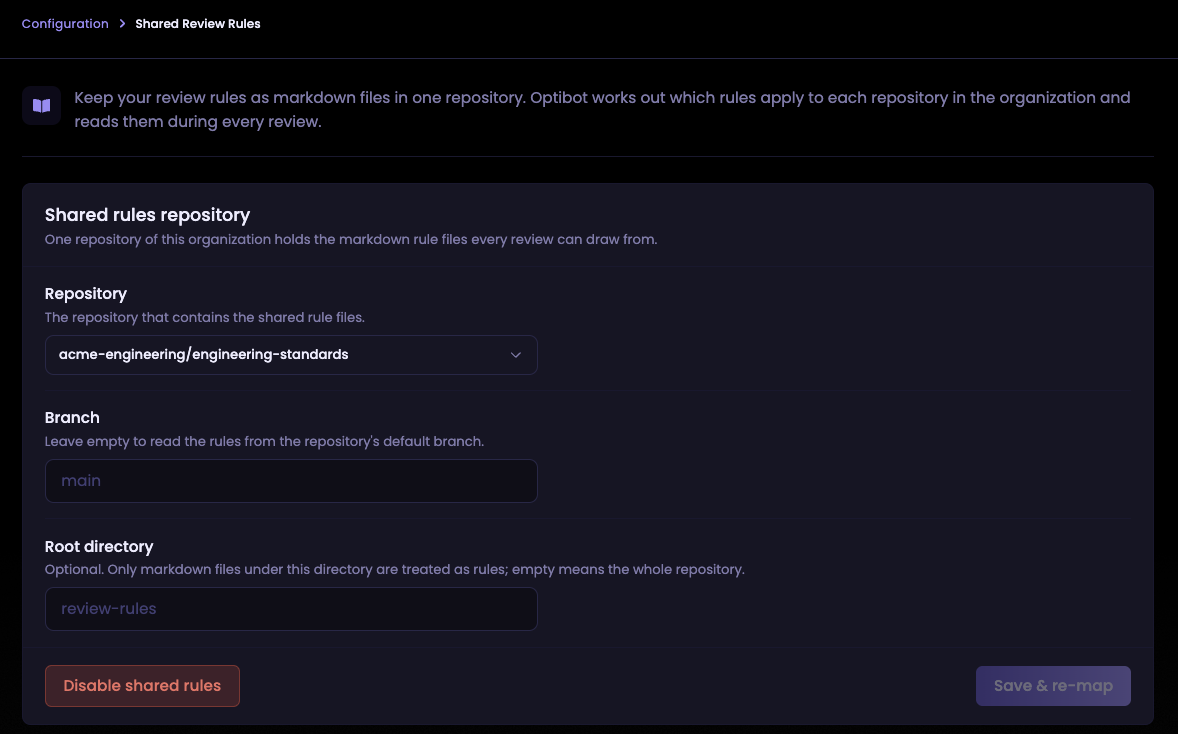
Open Shared Review Rules under Configuration in the Optibot dashboard and fill in the Shared rules repository card:
- Repository: the repository that holds your rule files.
- Branch (optional): the branch to read rules from. Leave it empty to use the repository’s default branch.
- Root directory (optional): only markdown files under this folder are treated as rules, for example
rules. Leave it empty to use the whole repository.
Click Save & re-map. Optibot reads your rule files, looks at the languages, frameworks, and tooling in each repository in your organization, and assigns each rule to the repositories it fits.
3. Check the mapping
When the run finishes, the Mapping status badge turns Ready and the Rule mapping table lists every repository with the rules assigned to it.
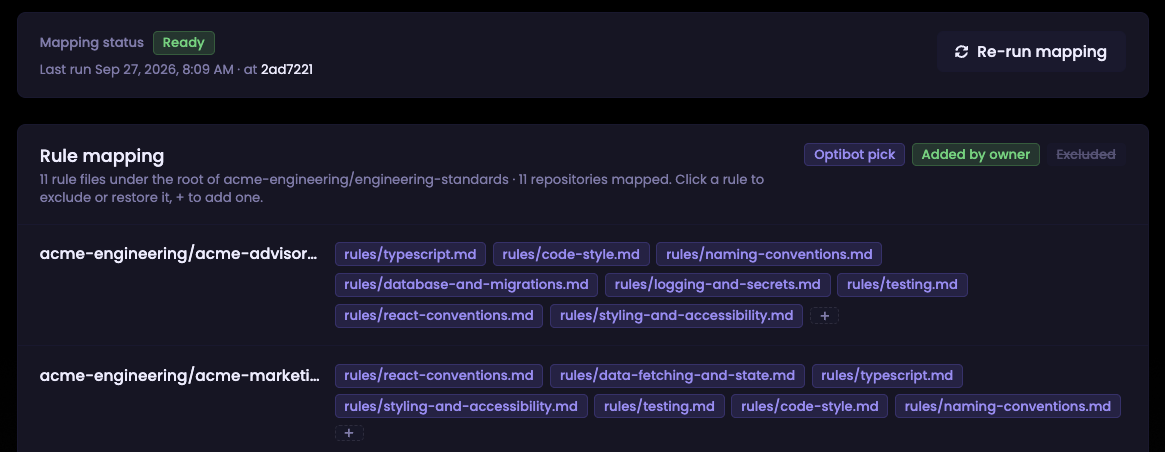
Each rule appears as a tag:
- Optibot pick: Optibot assigned this rule. Hover over it to see why.
- Added by owner: an owner added this rule by hand.
- Excluded: an owner removed this rule from this repository.
Click a tag to exclude a rule or bring it back, and click + at the end of a row to add any rule Optibot didn’t pick. Your changes are kept every time the mapping runs again.
Markdown files that aren’t rules, such as READMEs, changelogs, runbooks, and templates, are shown in a separate Skipped list and are never applied.
Keeping Rules Up to Date
- Edit a rule: push the change to the configured branch. Optibot re-maps only the files you changed, automatically, and reviews use the new version once that finishes.
- Add a rule file: push it, and Optibot assigns it to the repositories it fits.
- Delete a rule file: push the deletion, and Optibot removes it from every repository, including anywhere an owner added it by hand.
- Add a new repository to your organization: click Re-run mapping so Optibot includes it.
While a run is in progress, the status shows Queued or Running along with its current step. Reviews keep using the last completed mapping until the new one is ready, and they keep using it if a run fails, so a failed run never leaves a repository without its rules.
How Rules Appear in Reviews
Shared rules are applied alongside the repository’s own review guidelines and Optibot’s standard review. They are organization-wide defaults, so when a repository’s own guideline directly conflicts with a shared rule, the repository’s guideline wins.
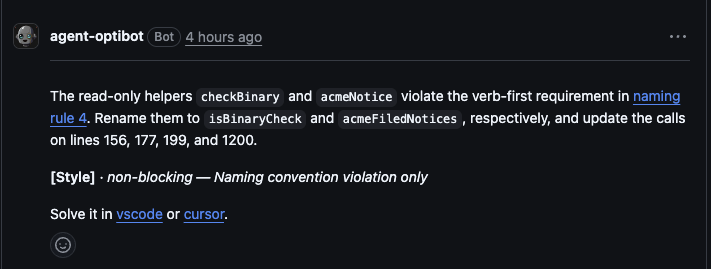
Findings cite the rule
When a comment enforces a shared rule, the rule name links straight to that file in your rules repository, so the author can read the full standard in one click.
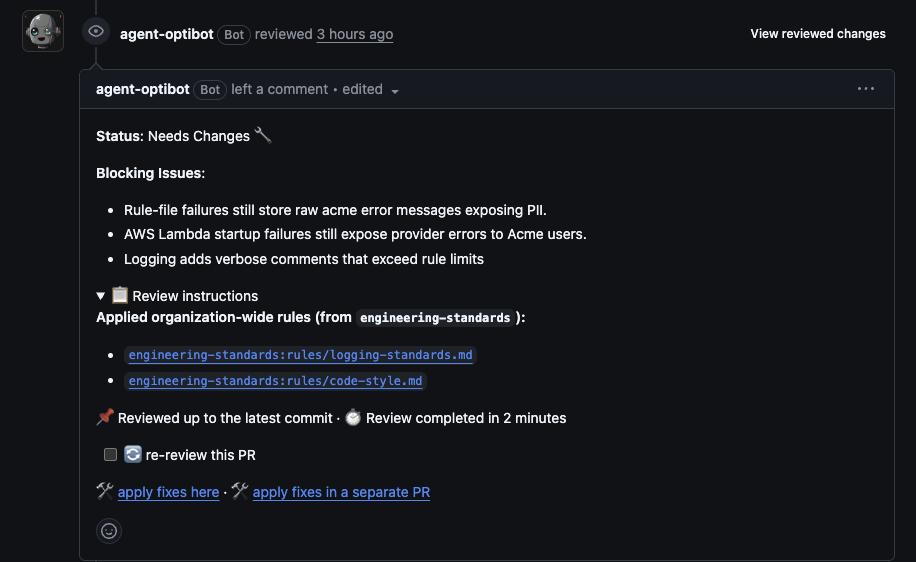
Every review lists what it applied
Expand Review instructions at the bottom of a review to see the shared rules it used under Applied organization-wide rules, with a link to each file. If the repository has its own guideline files, they’re listed there too.
Shared Rules or Repository Guidelines?
| Use shared rules for | Use repository guidelines for |
|---|---|
| Standards that apply across many repositories | Conventions specific to one repository |
| Stack conventions (TypeScript, React, Terraform) that should follow the stack wherever it appears | Rules for one directory or service in a monorepo |
| Company-wide requirements such as logging, secrets, and testing | Exceptions to an organization-wide default |
The two work together. A common setup is shared rules for the organization’s baseline, plus a short repository guideline file for anything that repository does differently.
Best Practices
One topic per file
Optibot assigns rules file by file. react-conventions.md and terraform.md can each go to exactly the repositories that use them, but a single standards.md covering both has to go everywhere or nowhere. Small, focused files map more precisely.
Say what the rule covers
Name files and headings after their subject, like typescript.md or # Database and Migrations, and open with a line on what the rule applies to. The clearer the subject, the more accurately Optibot matches the rule to the right repositories.
Write rules as things to flag
“Flag any API handler that returns a stack trace to the client” gives Optibot something concrete to check. “Handle errors properly” does not. Write down what a senior engineer on your team would actually push back on.
Don’t repeat Optibot’s baseline
Optibot already catches common security issues, null safety problems, logic errors, and code quality concerns. Your rules are most useful when they cover your team’s own conventions.
Keep files short
A focused list of ten rules is applied more consistently than a fifty-point essay. Each review has a size budget for instructions (see Limits), and long files use it up.
Protect the rules repository
Whoever can merge into the rules branch can change how every repository is reviewed. Use branch protection and required reviews, and add a CODEOWNERS file so the right team owns each rule.
Check the mapping after big changes
After adding several rules or reorganizing the repository, look over the mapping table. Exclude anything that doesn’t fit and add anything Optibot missed. Your changes stay in place from then on.
Limits
| Limit | Value |
|---|---|
| Shared rules repositories per organization | 1 |
| Rule files read from the repository | Up to 50 markdown files (.md or .mdx). Files beyond that are ignored. |
| Size of each rule file | 50 KB. Anything beyond that is not read. |
| Shared rule files applied to one review | Up to 12 |
| Instructions per review | Shared rules and repository guidelines share one size budget. Repository guidelines are applied first, and shared rules fill the space that’s left. |
| Save & re-map and Re-run mapping | 3 runs per 10 minutes per organization |
Also good to know:
- Shared rules apply to pull request and merge request reviews. They are not used when Optibot replies to comments.
- Pushes to branches other than the configured branch, and changes to files outside the root directory, don’t trigger a re-map.
- Files named
README,CHANGELOG,LICENSE,CODE_OF_CONDUCT,SECURITY, and pull request or issue templates are never treated as rules. - The rules repository is not assigned rules automatically. An owner can still add rules to it by hand.
Security
- Rules come from the configured branch only. A pull request can’t change the rules it is reviewed against. If a pull request to the rules repository edits a rule file, that edit is ignored for its own review and listed as skipped in the footer, and applies once it merges.
- Rules can only add to a review. They cannot suppress security findings, breaking bugs, or data integrity issues.
Troubleshooting
| Symptom | What to check |
|---|---|
| Saving says the repository can’t be read | Make sure the repository belongs to your organization and Optibot has access to it, then save again. |
| A repository row shows Unable to assign docs | Optibot couldn’t read that repository. Check that it’s included in Optibot’s access for your organization, then click Re-run mapping. |
| A rule you expected is missing from a repository | Hover over the repository’s tags to see Optibot’s reasoning, and click + to add the rule by hand. |
| A rule file appears in the Skipped list | Rewrite it as a list of things a reviewer should check, then push the change. |
| A new repository isn’t in the table | Click Re-run mapping. |
| A rule edit isn’t showing up in reviews | Check that you pushed to the configured branch and that the mapping status is Ready. |
Turning It Off
Click Disable shared rules on the Shared Review Rules page. Reviews stop applying shared rules straight away, and the mapping, including any rules you added or excluded by hand, is removed. Your rules repository itself is not touched.