
Setting Up Jira Integration in Insights
Connecting Jira with Insights allows you to track engineering productivity, including cycle times, issue progress, and delivery metrics, all in one place.
1. Navigate to Settings
Click the Settings icon in the bottom left of your sidebar.
2. Add Team Members
Inside the Settings page, navigate to the Members tab.
- Click Add a new member to add the engineers whose cycle times and issue data you want to track.
- Once members are added, you’ll be able to link them with their Jira accounts later in the process.
3. Open Jira Integration
Go to the Integrations tab and select Jira Integration.
4. Enter Jira Connection Details
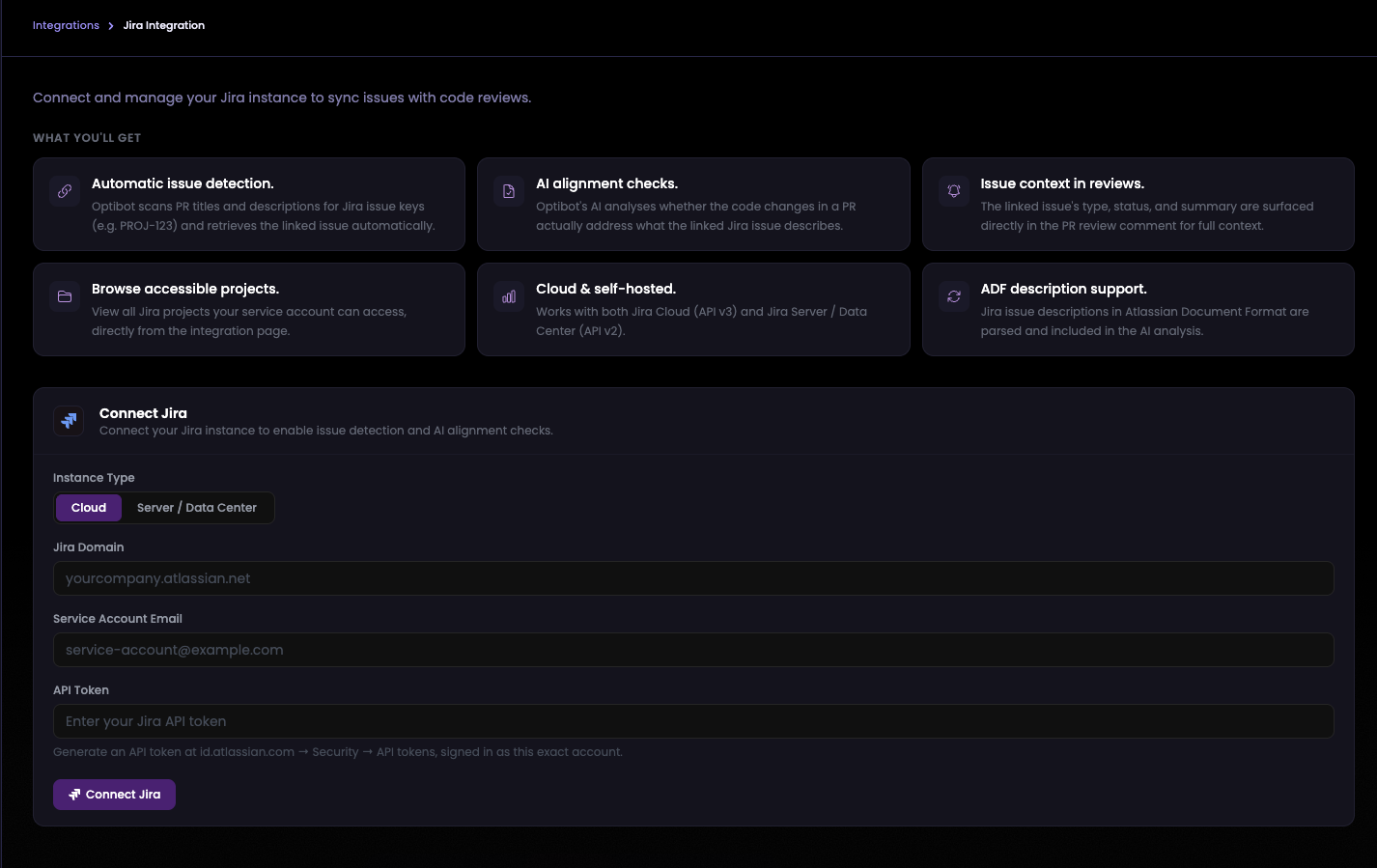
Fill in the required fields:
- Instance Type – Choose Cloud or Server / Data Center first. The rest of the form adapts to your choice. For example, the account field asks for a username instead of an email on Server / Data Center.
- Domain Name – Use the domain of your Jira Cloud or Jira Server instance (e.g.,
https://yourcompany.atlassian.net— no trailing slash). - Service Account – (Recommended) Create a dedicated service account in Jira with access to the projects you want Insights to analyze. Alternatively, you may use a personal access token. The API token hint below this field updates automatically based on the account you enter, pointing you at the right place to generate a token.
- API Token – Generate and paste the API token associated with your service account or personal account.
How to Get Your Connection Details
a. Domain Name
Your domain name is the base URL of your Jira instance:
- Jira Cloud:
https://yourcompany.atlassian.net— visible in the address bar when logged into Jira - Jira Server / Data Center:
https://jira.yourcompany.com— your self-hosted Jira URL
⚠️ Remove the trailing slash. Make sure the URL does not end with
/(e.g. usehttps://yourcompany.atlassian.net, nothttps://yourcompany.atlassian.net/).
b. Service Account
- Jira Cloud: The email address of the account (e.g.
[email protected]). Using a dedicated service account is recommended for reliability and centralized control. - Jira Server / Data Center: The username of the account (not the email).
The account must have access to all Jira projects you want Insights to track. See Service Account Permissions below for the exact permissions required.
c. API Token
- Jira Cloud: Log into Atlassian → Profile dropdown → Manage Your Account → Security → Create and Manage API Tokens → Create API Token → copy and save. Do not use your password.
- Jira Server / Data Center: Go to your profile → Personal Access Tokens → Create token → copy and save.
💡 Tip: API tokens can expire. If authentication fails, generate a new token and update it in the Insights settings.
5. Configure Import & Webhooks
Enable the following options for a complete setup:
- ✅ Import users from Jira → Ensures your Jira users are synced into Insights.
- ✅ Automatically integrate with Jira webhooks → Allows Insights to update metrics automatically as activity occurs in Jira.
Alternatively, you can copy and paste the webhook link manually into Jira if you prefer.
6. Save Your Integration
Once all details are entered, click Save.
- The initial connection may take a few minutes while Jira validates the service account or access token.
- Once complete, Insights will begin importing data from your Jira projects.
7. Link Users to Jira
After setup, return to the Members tab to ensure users are correctly mapped to their Jira accounts.
- Click the Jira icon beside each user.
- Link the Insights member profile with the correct Jira user account.
This ensures that productivity and delivery metrics are accurately attributed to each engineer.
8. Manual Jira Webhook Setup
If you prefer to configure the webhook manually, or if your service account does not have Jira Administrator rights, follow the steps below.
Get your webhook URL
Your unique webhook URL is displayed in the Insights UI under Jira Integration → Webhook Status. Copy it from there — you’ll paste it into Jira in the steps below.
Jira Cloud
- In Jira, go to Settings (gear icon) → System → WebHooks.
- Click Create a WebHook.
- Give it a name (e.g. “Insights Sync”) and paste your webhook URL.
- Under Events, enable the following:
- Issue: created, updated
- Project: created, updated
- Sprint: created, updated, started, closed
- User: created, updated
- Click Save.
Jira Server / Data Center
- In Jira, navigate to Settings (gear icon) → System → WebHooks (or go directly to
/plugins/servlet/webhooks). - Click Create a WebHook.
- Give it a name, paste your webhook URL, and enable the same events listed above.
- Click Create.
💡 Tip: On Jira Server, Insights can create the webhook automatically during setup if your service account has Jira Administrator access. Enable Automatically integrate with Jira webhooks during setup to use this option.
Service Account Permissions
The service account (or personal account) used for this integration requires the following Jira permissions:
Jira Cloud
| Permission | Where to set it |
|---|---|
| Browse Projects | Per-project role — add the service account to each project you want tracked |
| Browse Users and Groups | Global permission — enabled by default in most Jira instances |
Jira Server / Data Center
| Permission | Where to set it |
|---|---|
| Browse Projects | Per-project role — add the service account to each project you want tracked |
| Browse Users | Global permission — set in Settings → System → Global Permissions |
| Jira Administrators (optional) | Only required for automatic webhook creation |
💡 Tip: Both Optibot and Insights are read-only — no write permissions are required on your Jira instance.
Reconnecting or Fixing a Broken Integration
If your API token expires, your service account credentials change, or Insights can’t load your Jira projects, you no longer need to disconnect first:
- Return to the Jira Integration page. The form is pre-filled with your existing Domain, Service Account, and Instance Type, so you only need to paste a fresh API token.
- Click Save. Your existing integration updates in place with the newly validated credentials.
- If Insights still can’t read your projects after saving, you’ll see a clear message telling you to disconnect and reconnect with a fresh token, instead of a stale or blank project list.
💡 Tip: Atlassian service accounts (accounts ending in
@serviceaccount.atlassian.com) are fully supported. If a service account was previously rejected with an “Invalid Jira credentials” error, reconnecting will now succeed.
✅ Jira Integration Complete
Your Insights dashboard is now connected to Jira. You’ll start seeing data populate in areas like PR Cycle Time, Story Points, and Time in Status, giving you visibility into your team’s delivery flow.
💡 Tip: If your Jira story point field is unreliable, or your team doesn’t estimate in points at all, see Story Points for how to count every ticket as a fixed number of points instead.