
Story Points | Track Sprint Velocity, With or Without Jira Estimates
The Story Points page shows how much work your team completes each sprint, pulled from your connected Jira projects. If your Jira story point field is unreliable, or your team doesn’t estimate in points at all, you can tell Insights to count every ticket as a fixed number of points instead.
Where to Find It
Go to Delivery → Story Points in the left sidebar.
Views
Two view modes sit at the top of the page:
- Chart: story points by sprint, with averages across the sprints currently in view.
- Sprint Review: a per-sprint breakdown, including commitment progress.
Sprint Filters
The sprint dropdown decides which sprints the page covers:
- Active Sprints: sprints running right now. The selected date range does not apply here, because “running right now” has no date window.
- Completed Sprints: sprints that finished inside the selected date range.
- All Sprints: the union of both, plus sprints that have not started yet.
A sprint counts as complete once it has ended, or once somebody closes it early in Jira. This matters if your team lets sprints lapse instead of clicking Complete sprint in Jira: those sprints still count as completed, and they appear in the window they finished in rather than the one they started in.
Story Point Settings
If Jira isn’t reporting story points, either because the field changed or because your team plans in whole tickets, you can count every ticket as a fixed number of points instead.
Open Story point settings from the gear icon beside the Chart and Sprint Review toggle.
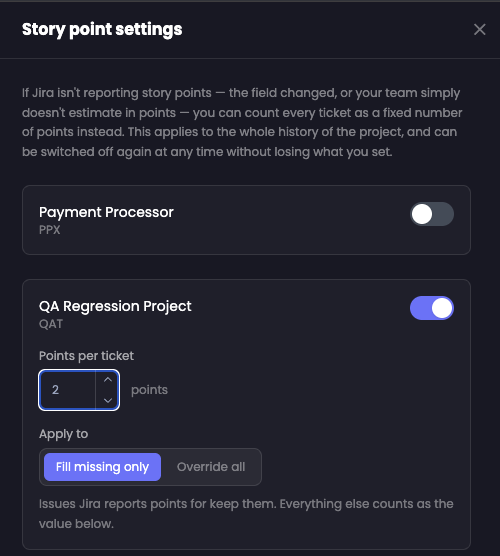
Configured project by project
Every Jira project Insights tracks gets its own row, listed by project name and key, and each row has its own switch. The override is decided project by project, never globally. A team that estimates properly in one project and works in whole tickets in another can have both represented correctly on the same page, at the same time.
Switching a project on reveals two controls:
- Points per ticket: the value each issue counts as, from 1 to 1000.
- Apply to: which issues that value applies to.
The two override types
| Mode | What it does |
|---|---|
| Fill missing only | Issues that Jira reports points for keep those points. Every other issue counts as your Points per ticket value. |
| Override all | Jira’s story point field is ignored entirely. Every issue counts as your Points per ticket value. |
Use Fill missing only when your Jira estimates are partly there and you want to close the gaps without discarding real data. Use Override all when the field can’t be trusted at all, or when your team doesn’t estimate and every ticket should count the same.
What the override affects
- It applies to the project’s whole history, not only from the moment you switch it on, so past sprints get usable numbers straight away.
- You can switch it off at any time. Insights returns to Jira’s own figures and keeps the value you set, so there is nothing to lose by trying it on one project first.
- Whenever an overridden project contributes to what’s on screen, the page shows an Estimated badge naming the value and the project it applies to, so estimated figures are never mistaken for Jira data.
💡 Tip: Only organization admins and owners can change story point settings. Everyone else sees the page with the override applied, including the Estimated badge.