In-App Support, a What's New Panel, and Safer Apply-Fix Links
A new in-app Support page and What's New panel bring help and product updates into the dashboard, plus apply-fix links are now off by default.
Three quality-of-life updates to the dashboard this week: getting help, staying in the loop, and one setting made safer by default.
New
Get help without leaving the app
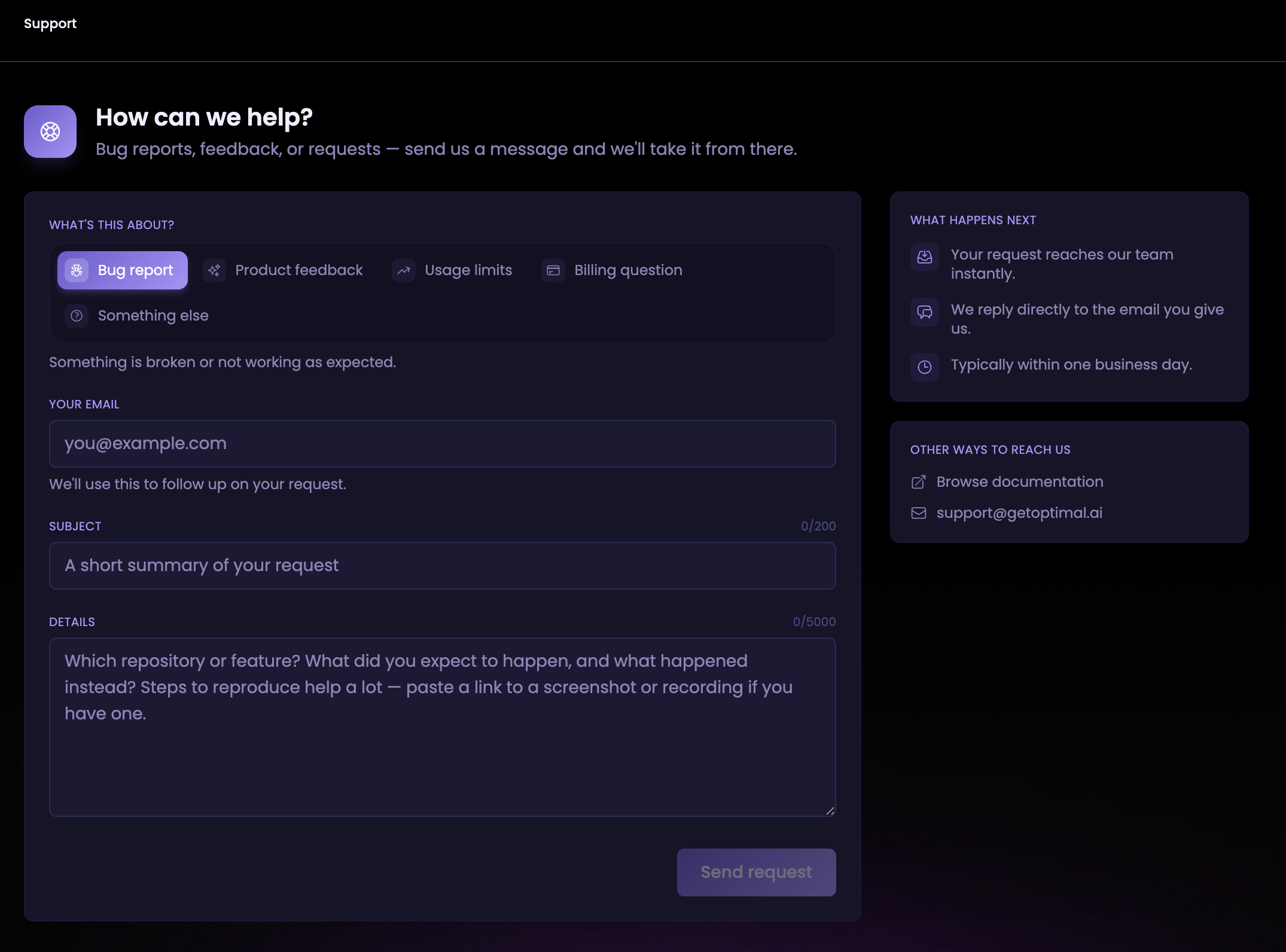
Reaching us used to mean leaving the app for an external contact page. Any member of your organization, not just the owner, can now open a Support page from the profile menu's "Help & Support" item and send a request in one of five categories: bug report, product feedback, usage limits, billing question, or something else. Each request reaches our team instantly, and we reply directly to the email you give us, typically within one business day.
See what's new without leaving your dashboard
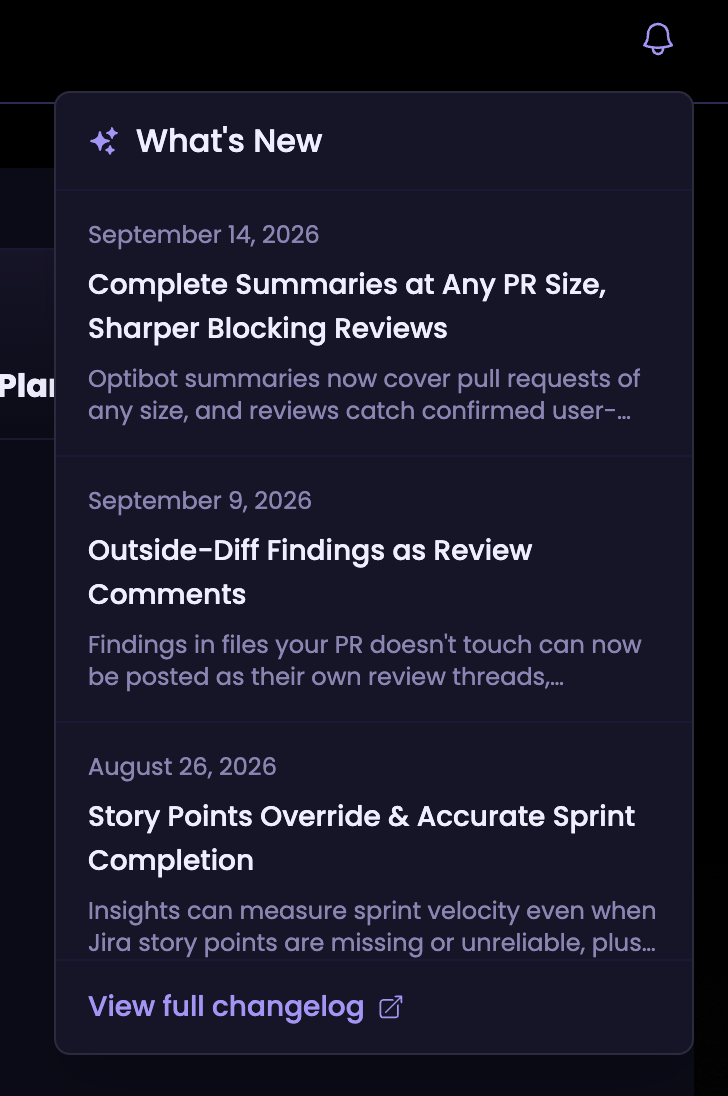
A bell icon in the dashboard header, on both desktop and mobile, now opens a "What's New" panel listing the most recent product updates: title, date, and a short description for each. A small dot marks unseen updates and clears the first time you open the panel, and a "View full changelog" link at the bottom takes you to this page for everything else.
Improvements
Apply-fix links are opt-in now
Optibot review comments used to carry "apply fixes" links on every review that found something, whether or not anyone had asked for a fix. A stray click was all it took to kick off a run that nobody actually wanted.
A new organization setting, Show "apply fixes" links, controls whether these links appear on reviews. It's off by default for every organization, so a fix only runs when your team deliberately triggers one. Owners can turn it back on from the Review Fixer settings page in the dashboard.
Nothing else about the fixer changed. Triggering a fix with #optibot fix, or through auto-trigger rules, works exactly as before. This change only affects the one-click links Optibot posts alongside a review.